
The AC Normandie messaging system remains the official communication channel for staff of the National Education assigned to the academy. Accessing professional emails from a smartphone requires manually entering connection parameters that the academic portal does not always preconfigure. Several technical points deserve to be detailed, as field feedback varies on the procedure to follow depending on the type of device and the system version.
Why IMAP Causes Fewer Problems than POP on AC Normandie Messaging
Before adjusting the phone settings, the choice of the reception protocol determines everything that follows. There are two options: POP and IMAP. The POP protocol downloads messages to the device and then, depending on the configuration, deletes them from the server. With IMAP, emails remain synchronized between the mobile and the computer.
For academic messaging, IMAP is the protocol recommended by the recent guides from the Normandy academy. An email read on the phone also appears as read on the webmail, and a draft started on the computer can be found on the smartphone. With POP, this consistency disappears, leading to duplicates or missing messages as soon as one checks their inbox from multiple devices.
It is possible to configure AC Normandie messaging on mobile by following the detailed IMAP procedure, which remains the most reliable way to maintain synchronization across all devices.
IMAP and SMTP Server AC Normandie: Exact Parameters to Enter
The majority of configuration failures stem from an error in the server address, port, or encryption type. The parameters to enter are not the same as those for a public email service.

Here are the reception and sending settings to use:
- Incoming server (IMAP): imap.ac-normandie.fr, port 993, SSL/TLS security. This port requires an encrypted connection from the start, without intermediate STARTTLS negotiation.
- Outgoing server (SMTP): smtp.ac-normandie.fr, port 465 or 587. Port 465 uses SSL/TLS directly, while port 587 goes through STARTTLS. Both work, but 465 is often better accepted by recent mobile applications.
- SMTP authentication: it must be enabled. Without it, the server refuses to send. The username and password are the same as for reception.
- Username: depending on the configurations, it may sometimes be necessary to enter the full academic address ([email protected]), or sometimes just the short identifier. Several sources indicate that the full address works more reliably on most mobile clients.
If the messaging application offers an automatic detection mode after entering the address, it is better to bypass it and choose manual configuration. Automatic detection often attempts generic parameters that do not match the academic server.
Configuration on Android and iPhone: Key Differences to Know
On Android, the path varies depending on the manufacturer’s overlay, but the principle remains stable. In Gmail or the native Mail app, you need to add an “Other” or “Personal IMAP” account. A common pitfall: selecting “Exchange” by reflex, which directs to an ActiveSync protocol incompatible with the AC Normandie server.
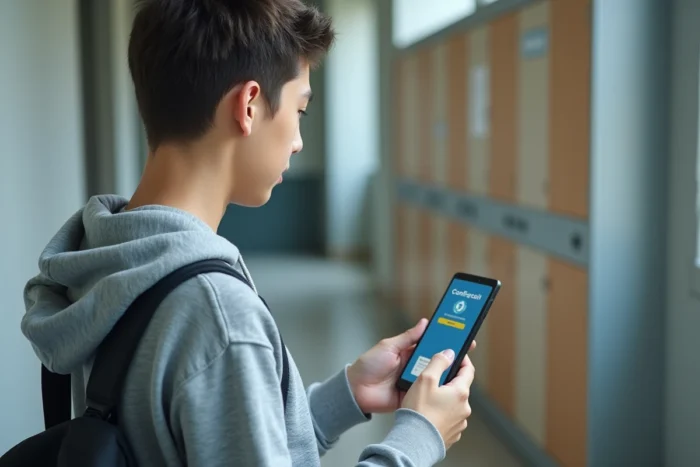
On iPhone, the path goes through Settings, then Mail, then Accounts, then “Add Account”, and finally “Other”. The “Add Mail Account” option opens a form where the incoming server and outgoing server fields must be manually filled with the IMAP and SMTP parameters described above.
The Case of the Application Password
Some academies now require a distinct application password from the usual password for mobile email clients. The available data does not confirm that AC Normandie systematically applies this rule, but if the connection fails despite correct parameters, checking for the existence of an application password on the authentication portal is the first useful reflex.
Authentication generally goes through the arena portal or through credentials linked to the education.gouv.fr domain. In case of a recent password change on the webmail, the new password may take a few minutes to propagate to the IMAP server.
The Webmail as an Alternative When IMAP Configuration Fails
When manually entering the servers generates persistent errors (timeout, certificate rejected, authentication denied), the AC Normandie webmail remains accessible from the mobile browser. This fallback solution avoids any server configuration.
The method involves opening the webmail in Safari or Chrome, then adding a shortcut to the phone’s home screen. The shortcut behaves like a dedicated application, with direct access to the inbox. This approach works regardless of the operating system and does not depend on any IMAP or SMTP parameters.
However, the webmail shortcut does not allow push notifications. New messages only appear when the shortcut is manually opened, which limits its usefulness for staff who need to be alerted in real time.
Security and Connection to the Academic Portal
The academic webmail requires a secure connection via the authentication portal. On a public Wi-Fi network (train station, hotel, open staff room), the connection remains encrypted by HTTPS, but using a personal VPN may block access to the portal. Several official pages from the academy explicitly mention this point and recommend disabling any VPN device before connecting.
The AC Normandie messaging on mobile works well over both Wi-Fi and 4G or 5G. No specific network restrictions are documented for off-site access, unlike some intranet services that require a connection from the academic network.
The choice between native IMAP configuration and webmail shortcut depends on the desired level of responsiveness. For daily consultation without urgency, the shortcut is sufficient. For real-time monitoring with notifications, the IMAP configuration remains the only viable option, despite the manual entry it requires.