The Freebox Pop and Google Home form an effective duo to control your television, connected devices, and multimedia content by voice. However, you need to know how to make them work together beyond just saying “Ok Google, turn on the TV.” Here are ten concrete tips, listed in no particular order, to get the most out of this combination.
1. Link the Player Pop as a Chromecast device in Google Home
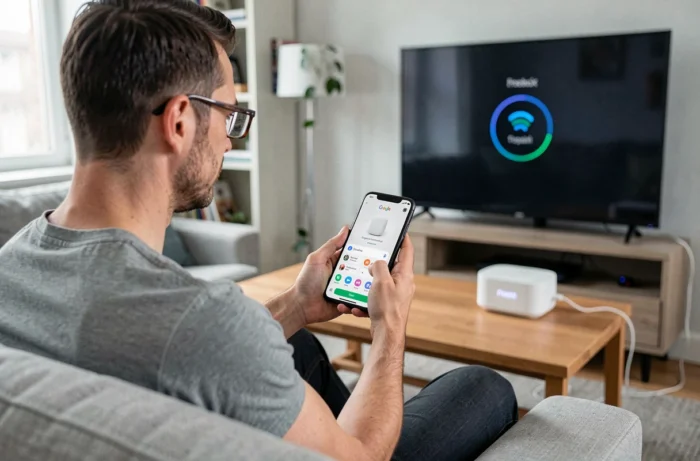
The Player Pop natively integrates the Chromecast protocol. In the Google Home app, add it as you would a classic Chromecast: it appears under the “Devices” section of the room you assign it to.
Once recognized, you can cast YouTube, Spotify, or any compatible app directly from your phone to the television. The voice command “Ok Google, play [title] on [Player name]” works without any additional manipulation.
Be sure to name the Player Pop with a short and distinctive name (“living room TV” rather than “Freebox Pop Player TV Free 4K”). Google Assistant understands simple names better, and you save a few seconds with each command. Several tips for Freebox and Google Home rely on this clear naming of devices.
2. Create voice routines for morning and evening
Google Home routines allow you to chain multiple actions with a single phrase. A concrete example: “Ok Google, good evening” can turn off the Player Pop, dim the connected lights, and start a calm playlist on the bedroom speaker.
A well-thought-out routine replaces five distinct commands. In the app, go to Settings, then Routines, and add the actions one by one. You can trigger the routine at a fixed time or by a custom phrase.
3. Enable HDMI-CEC to control the TV without a remote
HDMI-CEC (Consumer Electronics Control) allows the Player Pop to communicate with your television via the HDMI cable. When this option is enabled, Google Assistant can turn the TV on or off at the same time as the Player.
Check the activation in the settings of the Player Pop, under “Display and Sound.” On the TV side, the name of the option varies by brand (Anynet+ for Samsung, SimpLink for LG, Bravia Sync for Sony). Enable it on both sides for the command chain to work.
4. Assign the Player Pop to a room for contextual commands
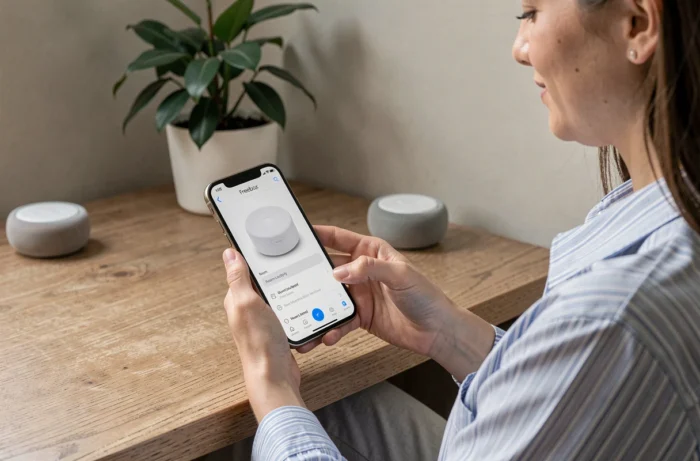
In Google Home, each device is linked to a room. If your Google Home speaker and your Player Pop are in the same room (for example, “Living Room”), the command “Ok Google, pause” automatically targets the correct device.
Without this assignment, the Assistant may confuse your devices. Grouping the speaker and Player in the same room simplifies all voice commands related to multimedia playback.
5. Stream audio from the Player Pop to a Google Home speaker
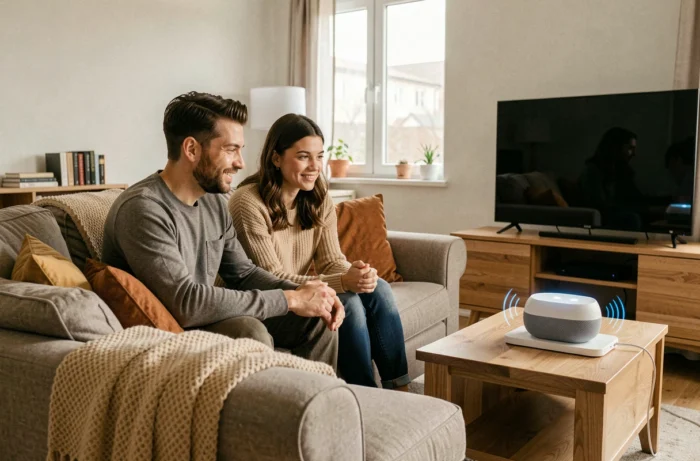
Have you ever noticed that the sound from your television doesn’t always satisfy you? The Player Pop can send the audio stream to a group of Google Home speakers via Chromecast Audio. Create a “Home Theater” group in the app and select it as the audio output.
This tip is particularly useful if you have multiple Google speakers spread throughout an open room. Multi-room sound provides a significantly better result than the built-in speaker of most televisions.
6. Check Freebox updates before setting up routines
Free rolled out a wave of updates in 2026 for the Freebox Pop, Ultra, and Delta, with changes to TV services and available apps. These updates can modify the navigation menus and access paths used by your Google Home routines.
Before setting up a new automation, check that your Player Pop’s firmware is up to date. Go to Settings, then System, then Update. An updated Player ensures proper compatibility with Google Assistant and Chromecast apps.
7. Use voice command to change TNT channels
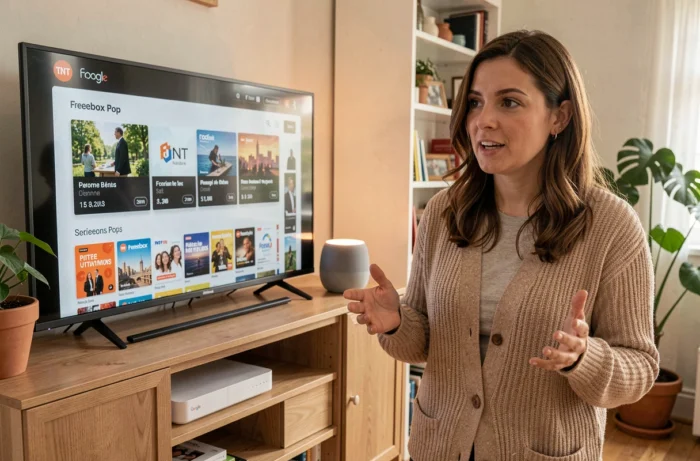
Google Assistant recognizes channel numbers and some TNT channel names. “Ok Google, switch to channel 2 on living room TV” or “Ok Google, switch to France 3” allows you to change channels without touching the remote.
This feature relies on the Chromecast integration of the Player Pop. If the command doesn’t work, check that:
- The Player Pop is correctly linked in Google Home as a casting device
- The Free TV app is open or the Player Pop is in active standby (not physically turned off)
- The room name is correctly assigned to avoid conflicts between devices
8. Configure Google Home’s Bluetooth with the Player Pop
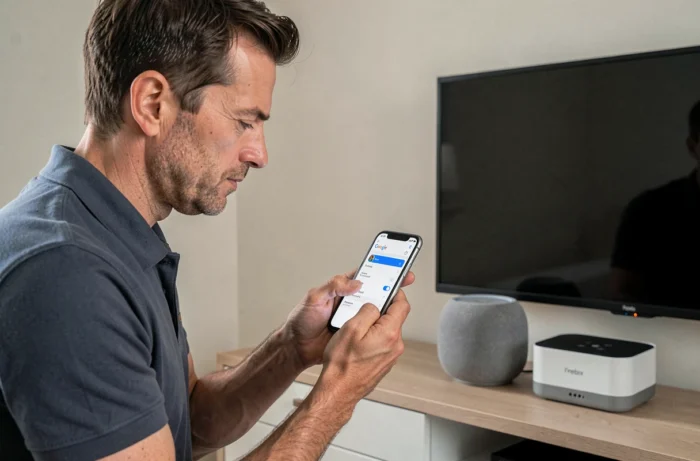
The Player Pop has Bluetooth, and so does Google Home. You can pair your Google Home speaker as a Bluetooth audio device for the Player. This method is an alternative to Chromecast when the Wi-Fi network is unstable.
Note: the Bluetooth protocol of the Player Pop has known limitations. Some users report intermittent disconnections. Prefer Wi-Fi for stability, Bluetooth for troubleshooting.
9. Separate the 2.4 GHz and 5 GHz Wi-Fi networks for stability
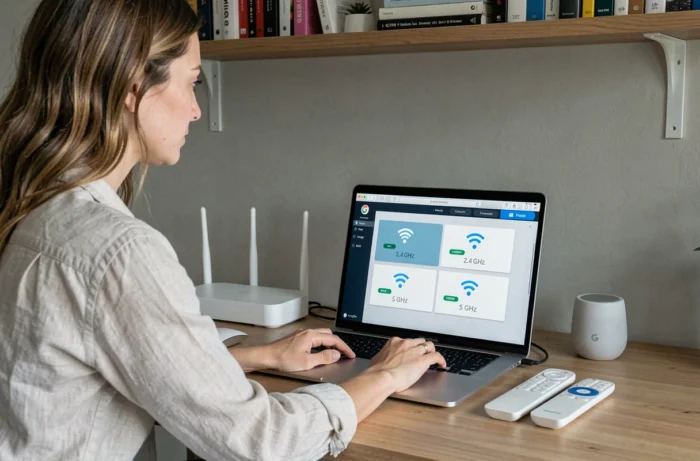
The Freebox Pop broadcasts on two Wi-Fi bands. Google Home operates exclusively on 2.4 GHz (for classic models), while the Player Pop can connect on 5 GHz.
If both bands have the same network name (SSID), Google Home may switch to the wrong band and lose connection. Separate the SSIDs in the settings of the Freebox Pop (Free subscriber space, Wi-Fi section) and connect each device to the appropriate band.
- Classic Google Home: 2.4 GHz band required
- Google Home Nest Mini: compatible with 5 GHz depending on the model
- Player Pop: prefer 5 GHz or, better, an Ethernet cable for video streams
10. Control connected home devices from the Player Pop via Google Home
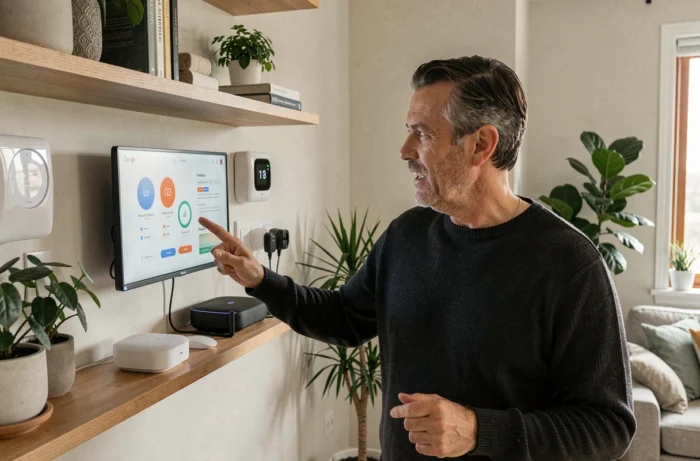
The Player Pop running Android TV provides access to Google Home from the TV screen. You can view the status of your connected devices (light bulbs, plugs, thermostat) and control them directly with the Freebox remote.
Combining voice (via the Google Home speaker) and screen (via the Player Pop) offers a complete home automation dashboard without a smartphone. This is particularly convenient when multiple household members share the living room and want to adjust lighting or heating without searching for their phones.
These ten settings cover the essentials of what the Freebox Pop and Google Home can do together. The common thread among all these tips: clear naming of devices, a stable Wi-Fi network, and up-to-date firmware. Three simple prerequisites that prevent most malfunctions.